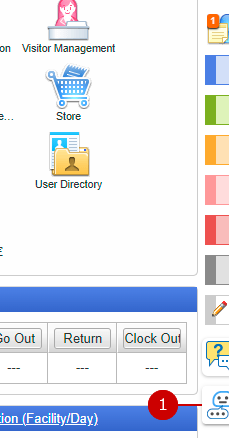
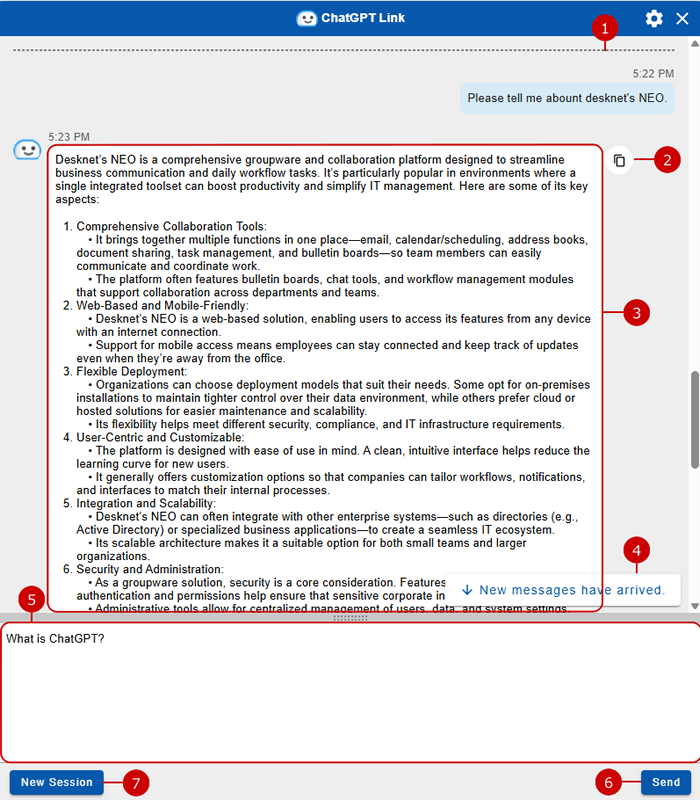
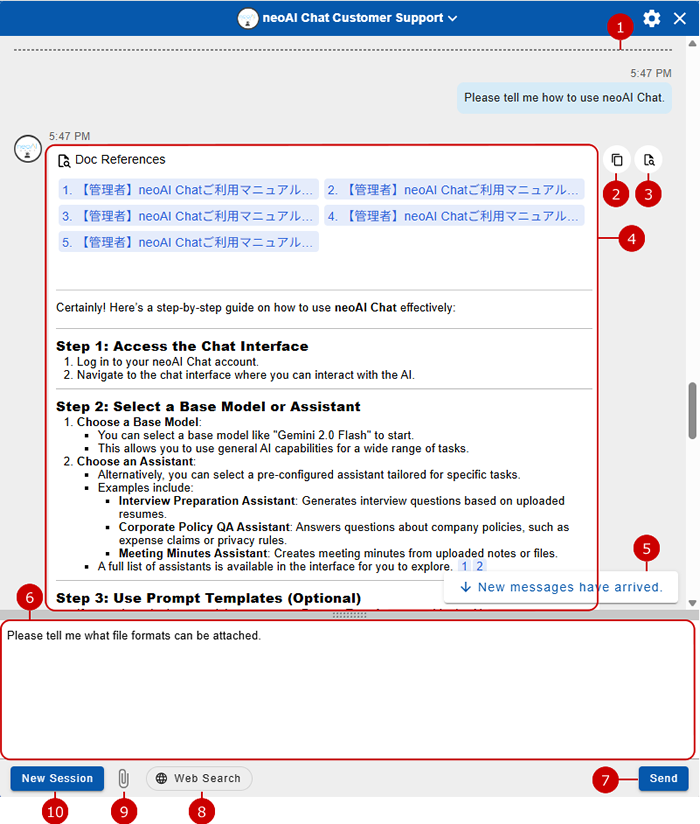
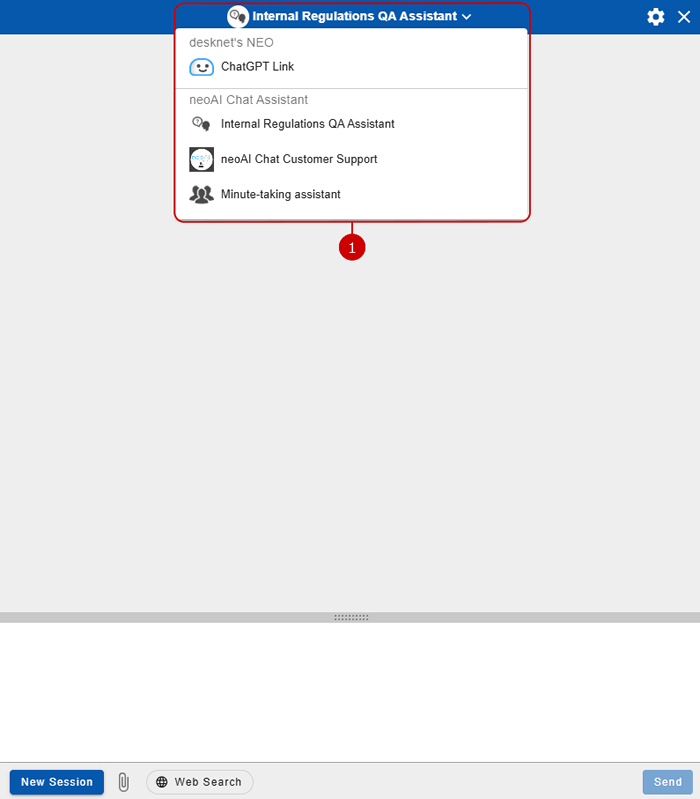
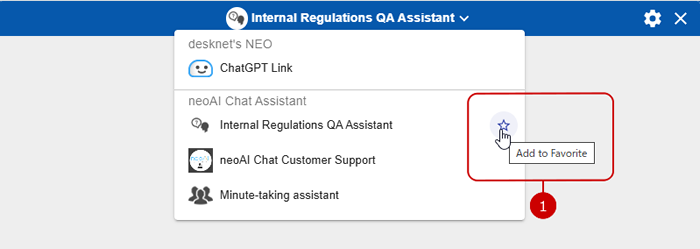
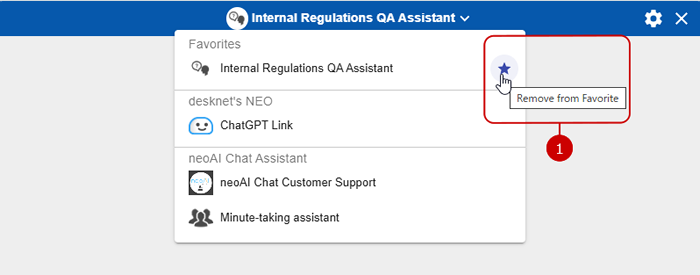
ChatGPT Link/AI Assistant Integration
This is a feature that enables users to use ChatGPT/AI Assistant in desknet's NEO.
You can ask questions to ChatGPT/AI Assistant by sending direct messages to it.
* ChatGPT can only be used if it is allowed by the system administrators.
(For more information, please refer to Setup > External Connection Settings > To Setup ChatGPT Link Settings in System Management Manual.)
* AI Assistant can only be used if AI Assistant Integration is set to "Use" by a system administrator.
(For more information, please refer to Setup > External Connection Settings > To Setup neoAI Chat Integration Settings in System Management Manual.)
(For more information, please refer to Setup > External Connection Settings > To Setup ChatGPT Link Settings in System Management Manual.)
* AI Assistant can only be used if AI Assistant Integration is set to "Use" by a system administrator.
(For more information, please refer to Setup > External Connection Settings > To Setup neoAI Chat Integration Settings in System Management Manual.)